Here is one of my favorite Accordance tips!
Let’s say someone has just rattled off two, three, four, or more verse references and you would like to pull them up quickly—or investigate the sources for yourself. Accordance lets you enter a series of noncontiguous Bible references directly into the Search Entry Box and display them together.
Try this example:
- Open Accordance.
- Select a Bible. If you haven’t done so already, choose the Bible you want to use. For this example, I am using the JPS 1985.
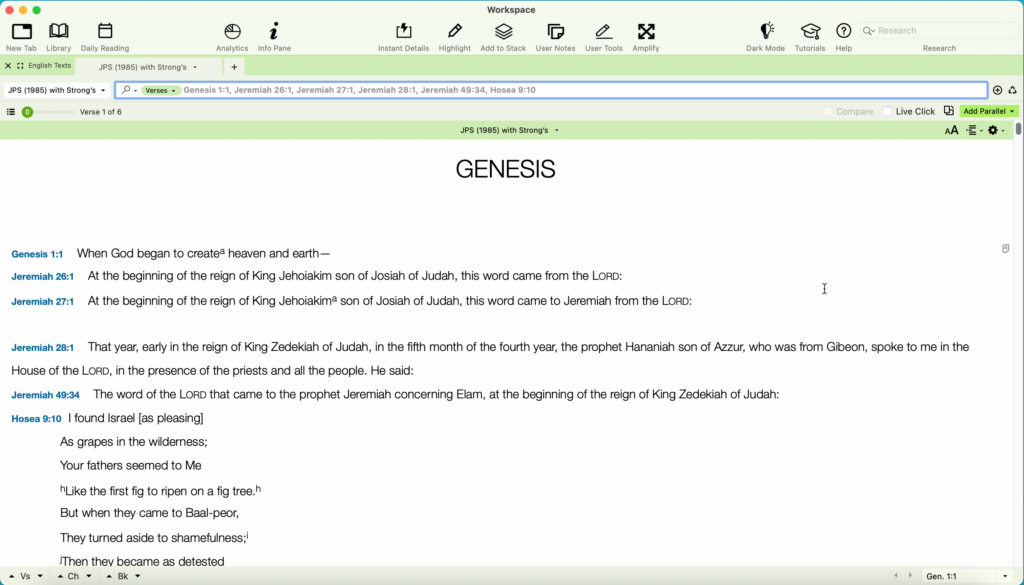
- Locate the Search Entry Box. Click inside it and type: Genesis 1:1, Jeremiah 26:1, Jeremiah 27:1, Jeremiah 28:1, 49:34, and Hosea 9:10.

Step four: Press the Enter key. Accordance will display the selected verses together in the results pane.
Adjusting Context in Search Results
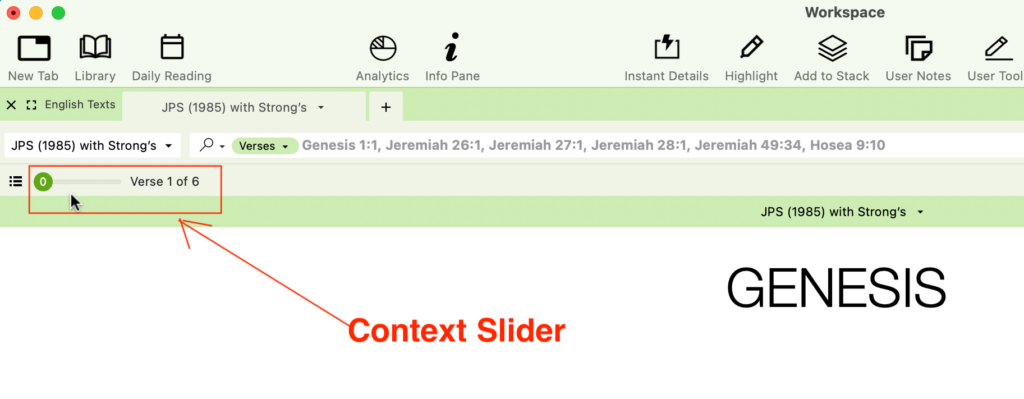
You can adjust how much context surrounds each verse by using the Context slider on the Hit Options bar at the top of the search results area.
- No Context (0): Setting the slider to
0displays only the specific verses you entered. - Adding Verses (1 through 9): Drag the slider to the right to display that number of verses before and after each selected verse.
- Full Context (A / All): Drag the slider all the way to A to view the full text and navigate continuously through the chapter or book.
Viewing Parallel Texts
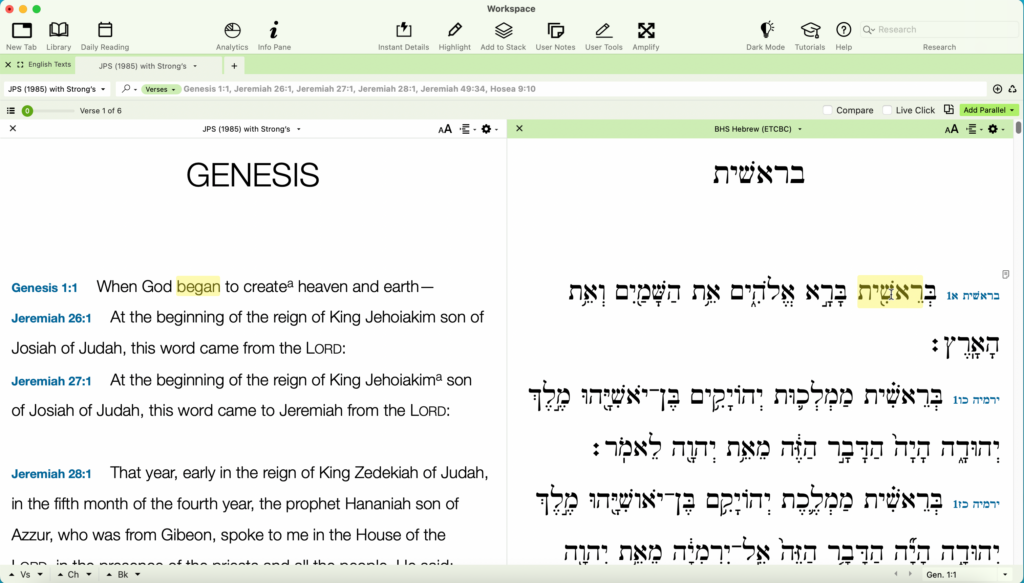
You can also display the same selected verses in parallel texts, making it easy to compare translations without entering the references again.
So whenever you encounter a string of scattered verse references, enter them together in Accordance and let the Search tab assemble them for you.
Thanks for reading, and now the power is yours.